Mobile measuring guide
How to Use a Screen Ruler on a Phone
A phone can work as a quick screen ruler, but the short display makes calibration easier to get wrong. Use a verified reference that fits, keep the phone in one orientation, and treat the result as an estimate—not a substitute for a physical ruler when accuracy matters.
Published September 6, 2026 · Updated October 1, 2026
The short answer
Set the browser to its normal zoom, choose portrait or landscape, and calibrate with a known length that fits completely on the display. Keep that setup unchanged while measuring. On a narrow phone, a short custom reference is often more practical than a card or sheet-of-paper preset.
Open the ruler and follow alongFrom opening the ruler to your first measurement
- Open the ruler and tap Start Measuring to hide the page information.
- Swipe the top tool controls horizontally if the unit control is off-screen. Select cm or cm+px for centimeter and millimeter measurements.
- Choose the orientation you will use, then open Calibrate. Match a verified reference with both ends visible and tap Done.
- Check a second known length, such as a marked 10 mm segment on a physical ruler. If it does not match the 1 cm interval, repeat calibration before trusting physical measurements.
- Use the ruler marks directly for a small object, or choose Guidelines and place two lines on the object’s edges. Read their gap; 3.7 cm means 37 mm.
Measure within this page. The ruler cannot overlay another browser tab or another app.
Portrait
Comfortable for short objects and vertical measurements, but the horizontal calibration line may run out of room.
Landscape
Better for wider references and horizontal objects. Calibrate again after rotating instead of assuming the previous scale still applies.
Set up the phone before measuring
- 1
Choose an orientation and keep it
Portrait is easier to hold. Landscape gives you more horizontal room. Pick one before calibration and do not rotate the phone halfway through the measurement.
- 2
Return the browser to its normal zoom
Reload the page after resetting zoom if you are unsure. Do not pinch-zoom after calibration, because that changes how large the ruler appears without changing the object in your hand.
- 3
Make room for the measurement
If you only need a horizontal distance, turn off the vertical ruler. This gives back the strip of workspace along the left side.
- 4
Calibrate on the same phone
Use a physical reference that fits fully on the screen. Finish the measurement in the same browser, orientation, zoom, and display setup.
Pick a calibration reference that actually fits
A reference is only useful when both ends are visible and you know its real length. If the on-screen outline is clipped by the edge of the phone, you cannot align it reliably.
| Reference option | Known length | Phone advice |
|---|---|---|
| ID-1 bank card preset | 85.60 mm long edge | It may fit in landscape but can be too wide in portrait. |
| A4 preset | 210 mm short edge | Usually too long for a phone display. |
| US Letter preset | 215.9 mm width | Usually too long for a phone display. |
| Custom length | A length you verify yourself | Best fallback: use a short, clearly marked segment from a physical ruler or gauge. |
Do not guess the reference size
Cards can have different formats, coins vary by country and denomination, and cases or worn edges make alignment harder. Check the specification or measure the reference with a trusted physical tool first.
Calibrate on a narrow screen
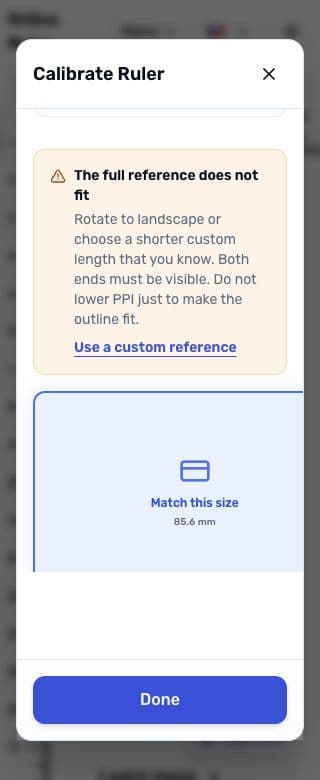
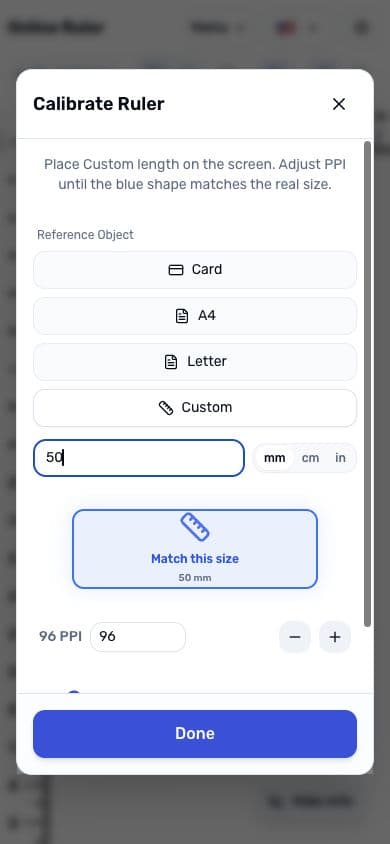
Screenshots illustrate the controls. They are not actual-size references, and the pictured PPI value is not a recommended setting for your phone.
- Open Calibration and choose a reference whose full outline fits inside the visible panel.
- If the presets do not fit, choose Custom and enter a shorter length you have verified.
- Place the physical reference gently against the display. Align one end first.
- Adjust the scale until the other end matches. Look straight down at the screen to reduce parallax.
- Save the calibration, then check a second known length before measuring anything else. A different length helps reveal a mistaken reference size.
A longer reference normally makes small alignment errors easier to notice, but only if the entire length fits. A fully visible 50 mm reference is more useful than a 210 mm outline that disappears beyond the screen.
Use Guidelines or Selection with touch
Guidelines for two edges
Drag down from the top ruler to add a horizontal line. When the vertical ruler is visible, drag right from it to add a vertical line. Move two lines onto the edges and read the distance between them.
Selection for one rectangle
Drag from one corner to the opposite corner. Move the box by dragging inside it, or resize it with a handle. This is usually easier than placing four separate guides on a small screen.
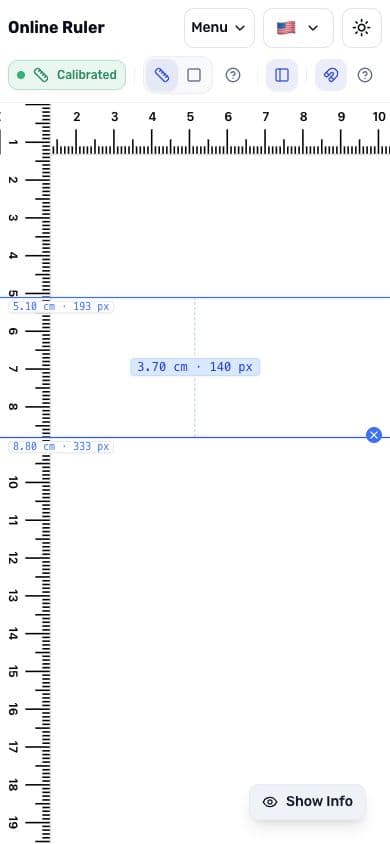
Leave Snap on when you want a clean ruler-mark value. Turn it off when a real edge falls between marks. Touch input is less precise than a mouse, so keep the webpage scale unchanged and make the final adjustment slowly.
Portrait or landscape: which is better?
| Task | Usually easier | Reason |
|---|---|---|
| Measure a short label or small part | Portrait | The phone is easier to hold steady. |
| Fit a bank-card-width reference | Landscape | There is more horizontal room. |
| Measure a taller object | Portrait | The long side of the screen runs vertically. |
| Compare several horizontal positions | Landscape | More width is available for guides. |
Orientation is not an accuracy setting by itself. The important part is to calibrate and measure without changing it.
Why a phone measurement can drift
- The phone rotated: the screen dimensions changed, so verify or repeat calibration.
- The page was pinch-zoomed: page content no longer has the same visible scale.
- A different browser was used: browser controls and viewport behavior may leave a different amount of visible space.
- The reference was clipped: matching only one end cannot establish the full length.
- The viewing angle changed: thick screen protectors and looking from the side make edge alignment less reliable.
The CSSOM View specification distinguishes page zoom from visual-viewport scaling such as pinch zoom. That is why keeping the same zoom state matters when you compare an on-screen scale with a physical object. See the official CSSOM View zoom definitions.
Use the result for the right kind of job
A calibrated phone ruler is reasonable for quick size checks: a label, craft piece, screw head, cable end, or small UI reference. It is not a certified measuring instrument. Use a physical ruler, caliper, or the required professional tool for manufacturing tolerances, medical decisions, safety checks, or anything expensive to cut or order.
Protect the screen: do not press sharp, dirty, hot, or heavy objects against the glass. A phone case or raised bezel can also prevent an object from sitting flat.
Try it on the ruler
Open the ruler in the orientation you will use. Select cm or cm+px, calibrate with a verified reference that fits fully, and check a second known length before measuring.
Open the online rulerKeep reading
How to calibrate the screen ruler
See the full calibration workflow and learn when to recalibrate.
Read guideReference object sizes for screen calibration
Check the exact size of a card, A4 sheet, or US Letter sheet.
Read guideHow to read millimeters on a ruler
Read the small cm-scale marks and convert a distance such as 3.7 cm to 37 mm.
Read guide