Millimeter measuring guide
How to Read Millimeters on a Ruler
The small marks between centimeter numbers represent millimeters. Learn to count those marks, convert a centimeter reading, and measure a gap that does not start at zero.
Published October 1, 2026
The short answer
1 cm = 10 mm. On this ruler’s cm scale, each small interval is 1 mm and the halfway mark is 5 mm. A reading of 3.7 cm is 37 mm.
For a real object against the screen, calibrate first. On the tool, select cm or cm+px; millimeter marks are already part of the cm scale.
Open the ruler to read millimetersRead the marks between centimeter numbers
Count intervals, not the lines themselves. From the 3 cm line to the next small line is 1 mm. Seven small intervals past 3 cm gives 3 cm + 7 mm = 37 mm.
Use the existing tool for a millimeter measurement
- Tap Start Measuring. On a phone, swipe the top controls sideways if the unit control is off-screen.
- Select cm for physical readings, or cm+px to see physical and pixel readings together.
- If measuring a physical object, open Calibrate, match a verified reference, save, and check another known length.
- Use the ruler marks directly or select Guidelines and place two lines at the edges. Drag down from the top ruler for horizontal lines; drag right from the left ruler for vertical lines.
- Read the distance in cm and multiply by 10. A gap of 3.70 cm is 37 mm; a gap of 0.80 cm is 8 mm.
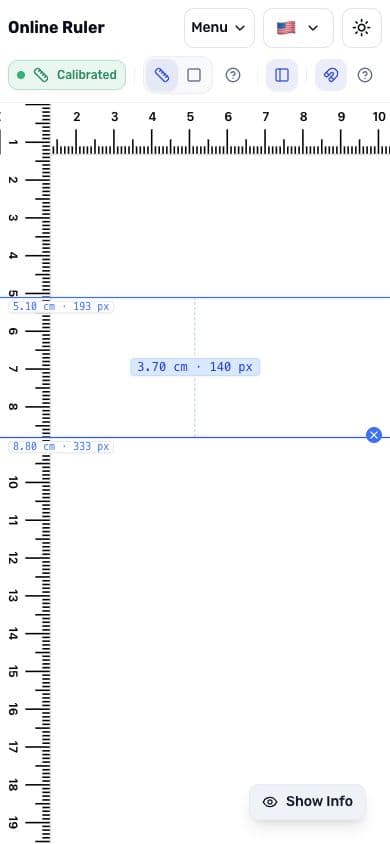
Turn Snap off if an edge falls between marks and you need to place a line freely. Extra decimal places in a reading do not establish equally fine physical accuracy.
If the object does not start at zero, subtract
The length is the end reading minus the start reading. An object starting at 2.3 cm and ending at 6.0 cm is 6.0 − 2.3 = 3.7 cm, or 37 mm. Its length is not 60 mm.
| Start | End | Difference | Length in mm |
|---|---|---|---|
| 0 cm | 3.7 cm | 3.7 cm | 37 mm |
| 2.3 cm | 6.0 cm | 3.7 cm | 37 mm |
| 1.0 cm | 1.8 cm | 0.8 cm | 8 mm |
This is particularly useful on a phone where the zero mark may be hidden by the left ruler. Two guidelines show the gap directly, so you do not have to place the object at zero.
Why a millimeter measurement may still be wrong
- Default scale: 96 PPI is a starting value, not proof that a mark represents a real millimeter on your device.
- Wrong unit: inch marks use fractions of an inch; they are not millimeter intervals. Select the cm scale for this workflow.
- Changed setup: rotation, zoom, another display, or changed display scaling may invalidate calibration. Check a known reference again.
- Clipped reference: if both ends of the calibration outline are not visible, rotate or use a shorter verified custom reference.
For work where an error matters, verify with a suitable physical measuring tool. Online Ruler measures within its own page; it does not measure objects in another app or infer the physical size of an uploaded image.
Unit reference: NIST metric prefixes.
Try it on the ruler
Choose cm or cm+px, calibrate before measuring a physical object, then read the marks or use two guidelines. Multiply the distance in cm by 10 to get mm.
Open the online rulerKeep reading
Use the ruler on a phone
Find the unit control, choose a reference that fits, and measure with touch.
Read guideCalibrate before measuring physical objects
Match a verified reference and check a second known length.
Read guideMeasure between two edges
Use Guidelines for a distance or Selection for a rectangular object.
Read guide